Archive
Security Compliance Manager 4.0
On the 28th of July 2016 Microsoft released new version of Security Compliance Manager. You can find some basic info about new version here: Security Compliance Manager 4.0 now available for download!
For those of you who haven’t heard about this solution before, it’s a free tool that enables you to quickly configure computers in your environment using Group Policy and/or Microsoft System Center Configuration Manager. New installer currently includes the same set of baselines as its previous version (3.0.60 released on 22nd of January 2013). All baselines include supporting documentation and referenced set of best-practice GPO settings for:
– Exchange 2007 SP3 & Exchange 2010 SP2
– Internet Explorer 8, 9 & 10
– Office 2007 SP2 & Office 2010 SP1
– Windows XP SP3, Windows Vista SP2, Windows 7 SP1, Windows 8
– Windows Server 2003 SP2, Windows Server 2008 SP2, Windows Server 2008 R2 SP1, Windows Server 2012
Main improvements are:
– Windows 10 and Windows Server 2016 support
– Support for existing Windows 10 version 1507, and Windows 10 version 1511 security baselines
– Support for upcoming Windows 10 version 1607, and Windows Server 2016
– Bug fixes for ‘Compare’ and ‘Simple View’ features in SCM
I guess they were a bit in a hurry since they missed few things in SCM version 4.0.00.1:
– File version of the new installer file is the same as it is on the previous version
– LocalGPO.wsf is gone
– no new baselines included
If you liked and used now deprecated LocalGPO.wsf, you can find new version of LocalGPO here: LGPO.exe – Local Group Policy Object Utility, v1.0.
If you have internet access on the computer where you installed SCM, SCM can and does automatically download new versions of baselines for:
– Internet Explorer 11 (Attachments)
– Windows 8.1 (Attachments)
– Windows 10 version 1511 (Attachments)
– Windows Server 2012 R2 (Attachments)
– Office 2013 (Attachments)
– SQL 2012 (Attachments)
If you wander where do all the links come from, you can check this link (SCM does this when checking for updates). It points to the latest version of RssFeed_BaselineUpdateV4dot0.xml. With some imagination and few lines of PowerShell syntax you can automate this process and auto-download new baselines without SCM or for offline use.
SCM on Download Center:
– Microsoft Security Compliance Manager 3.0.60
– Microsoft Security Compliance Manager 4.0.00.1
From AdmPwd to LAPS and now LAPS.E
How it all began…
Not many Windows admins heard about AdmPwd in the early 2012. I guess one of the reasons was, that we were all still trusting in the secure storage of passwords that were used as part of Group Policy Preferences (GPP) configuration. As probably many of you, I used GPP for setting and resetting passwords for local users on domain-joined Windows systems. Although not that often, I also used GPP for GPO-based management of Scheduled Tasks (which also supported usage of account names and passwords).
Until 2012 I believed that passwords used in GPP-based GPOs were safe since they were encrypted with AES-265. And then it happened – one day somebody decided to publish 32-byte AES key which was used for password encryption in GPP. Some time after that internet became full of tips and tricks on how to find and decrypt passwords stored in SYSVOL (like this one). More than two years later Microsoft released security update that blocked usage of passwords in the affected GPPs (Drive Maps, Local Users and Groups, Scheduled Tasks, Services, Data Sources).
Soon after Microsoft released security update, Microsoft PFE Tom Ausburne wrote blog post How To Automate Changing The Local Administrator Password. He explained part of the story and, more importantly, presented a solution for something a lot of admins were struggling with – how to manage local admin password in this new world without GPPs. The answer was AdmPwd.
AdmPwd
Until I read his blog post I didn’t really know much about AdmPwd – although the product and it’s code was already freely available on the internet for more than two years.
As it happens, around the same time as Tom published his blog post, I started working on a project that had high security requirements and one of them was automated management of local admin passwords. With few different options on the table, AdmPwd was chosen as the final solution for this particular requirement.
Some other tools and resources that were also used for securing this particular environment:
– Microsoft Enhanced Mitigation Experience Toolkit (EMET)
– Microsoft Security Compliance Manager (SCM) and it’s LocalGPO Tool (LGT)
– SANS SEC505 course scripts
As luck would have it, Jiri Formacek, developer of AdmPwd, also joined the same project. After few late evening beers and chats with him I got even more interested in AdmPwd. Although I wasn’t responsible for the implementation of AdmPwd, it got me intrigued and I started investing my “free” time into testing and learning about this new tool. I also added his website Local admin password management solution into my “good to know” collection.
LAPS and LAPS.E
With regular updates/improvements and published blog, AdmPwd started gaining wider audience and more acceptance in the enterprise environment. Approximately one year later, AdmPwd became Local Administrator Password Solution (LAPS) and MS made it part of it’s product portfolio (published in Microsoft Download Center and as MS Security Advisory 3062591).
Few months later in 2015, advanced version of LAPS was released – LAPS.E (also known as LAPS-E or LAPS/E). For the last few months, LAPS.E is at version 7.2.1.0 and is not yet included in MS product portfolio. Regardless of this, based on my experience, new LAPS.E is stable and working solution that is by now probably deployed in quite a few enterprise environments.
Important changes between versions
I won’t go deep into details about all the changes between different versions of this solution. If you want to know more about changes between versions and what they bring to the table, I would recommend you to start with reading Description at Local admin password management solution.
If you want to know all the details about the solution, please read technical specification document, available as part of documentation package of the version you are interested in.
What I’ll focus on are three different versions that you can currently download and start testing.
All versions:
– packaged as MSI installers
– default installation installs only client DLL (Client Side Group Policy Extension)
– dedicated installers for x86 and amd64
– GPO management with custom ADMX/ADML
– PowerShell module for management is AdmPwd.PS
– GUI for management
– require Windows 2003 SP1 and newer DCs
– require AD Schema extension
– require delegation of permissions on computer accounts
– supports only domain joined Windows clients
– support local and AD auditing
– client settings located in registry at HKLM\Software\Policies\Microsoft Services\AdmPwd
AdmPwd 5.2.0.0
– AdmPwd @GitHub
– x64 Installer
– x86 Installer
– supports Windows XP/2003 and above
– installation folder for CSE and client tools is %ProgramFiles%\AdmPwd
LAPS 6.2.0.0
– Documentation and Installers
– supports RODC (CSE and admin tools) – solution requires connection to a writable DC
– supports Windows Vista and above, and Windows Server 2003 and above
– updated GUI, PowerShell module and ADMX/ADML files
– same AD Schema as in previous versions
– installation folder for CSE and client tools is %ProgramFiles%\LAPS
AdmPwd.E 7.5.x.x
– AdmPwd.E @GitHub
– samples for development of custom AdmPwd.E support tools and client applications
– Sway-hosted solution overview
– updated AD Schema, GUI, PowerShell module and ADMX/AMDL files
– supports multi-forest deployment
– supports password encryption
– supports password history
– encryption key managed with GPO
– supports Windows XP/2003 and above (until v7.5.1.0; v7.5.2.0 removed support)
– new password decryption service – PDS (on DC or member server; multiple instances for HA)
– management with client tools is done through PDS and not directly on AD objects
– installation folder for CSE and client tools is %ProgramFiles%\AdmPwd
LAPS.Nano.DSC
– LAPS and Nano Server
– Testing LAPS for Nano Server with ws2016lab
– tested on TP5 of Nano server
– only works on Nano server
– instead of CSE it works as a Windows Service
– requires PowerShell DSC to configure settings in registry
– since version 7.5.1.0 client for Windows 2016 Nano server part of AdmPwd.E
Lessons learned
I started working with AdmPwd when it was at version 4.0.7.0. Since then it got quite far already but it’s still going to go further – and I’m going to follow :).
To ease your first or next step with this solution, I wanted to share few tips I learned along the way. To be honest, this is actually the reason why I wanted to write this post for quite some time. Well, this and some encouraging feedback after I posted my last two posts two weeks ago (after 4 years before that).
Clean install
- Please, do read technical documentation before you start. You can find some nice examples and a lot of explanation on the “how it works” side of things.
- Learn about the solution and test it in non-production environment first.
- Define permission model that supports your organization.
- Define password policy for local admin account.
- Run AD health check.
- Install and use PowerShell module to extend AD Schema (as member of Schema Admins; whoami /groups).
- If deploying PDS server, define location and HA requirements.
- Install and configure PDS server (port, firewall exception, custom service account).
- Delegate needed AD OU permissions.
- Copy ADMX & ADML to Policies, preferably in Central Store.
- Implement new GPO with needed configuration (easier for future upgrade).
- Install CSE on clients.
- Install GUI and/or PowerShell module on management computer.
Upgrade
- Schema update needed when upgrading to version 7 (versions 4, 5 and 6 share the same AD Schema extensions).
- New versions of management tools are backward compatible.
- Upgrade management tools and ADMX/ADML files.
- If you want to support multiple versions with different settings, use dedicated GPOs.
- Prepare new GPOs or set new policies in existing GPOs.
- Only one CSE version can be installed on any client at one time.
- Deploy new CSE to clients.
Custom install
– Different versions of PowerShell modules and GUI can be deployed on the same management computer in “portable mode” (without installation) as long as they are in different folders.
– Management tools can be stored and run from central location.
– To create “portable” versions of management tools, use admin install for MSI packages:
MSIEXEC /a “LAPS.x64.msi” /qn TARGETDIR=”AdmPwd.Setup.x64″
– To hide software in Programs and Features Control panel view, use msiexec parameter ARPSYSTEMCOMPONENT=1:
MSIEXEC /i “LAPS.x64.msi” /qn ARPSYSTEMCOMPONENT=1
– To create custom local admin account use msiexec with CUSTOMADMINNAME parameter:
MSIEXEC /i “LAPS.x64.msi” /qn CUSTOMADMINNAME=LocalAdmin
– To change default behavior of component installation (CSE only), you can either customize MSI with MST or use msiexec with ADDLOCAL parameter:
msiexec /i LAPS.x64.msi ADDLOCAL=CSE (this is default configuration)
msiexec /i LAPS.x64.msi /qn ADDLOCAL=CSE (silent install, no GUI, default configuration)
msiexec /i LAPS.x64.msi /qn ADDLOCAL=CSE,Management,Management.UI,Management.PS,Management.ADMX (silent install of CSE and all management tools)
msiexec /i LAPS.x64.msi /qn ADDLOCAL=Management,Management.UI,Management.PS,Management.ADMX REMOVE=CSE
or
msiexec /i LAPS.x64.msi /qn ADDLOCAL=Management.UI,Management.PS,Management.ADMX REMOVE=CSE (silent install of all management tools, remove CSE)
msiexec /i LAPS.x64.msi /qn ADDLOCAL=CSE,Service (silent install of PDS and CSE)
msiexec /i LAPS.x64.msi /qn ADDLOCAL=Management (silent install, prestage only – no component gets installed) GUI-based selection would be like this:
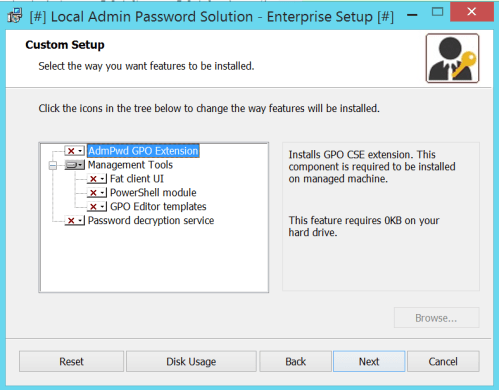
If you want to check which components are available for ADDLOCAL parameter, use Orca, SuperOrca or any other MSI database table editor and view table Feature. Be aware, that this parameter is case sensitive. If you miss-type something, you’ll get error code 2711 during installation:

Components, supported with LAPS 7 installer:
– CSE
– Management.UI
– Management.PS
– Management.ADMX
– Service
If you want to learn more about MSIEXEC and supported parameters check:
– Command-Line Options
– How to Use Property Reference Command-Line Parameters with Msiexec.exe
Despite the unusually long post, I hope you managed to get something useful out of if. If nothing else, it’s a nice reference for future reading – another reason why I wanted to write about it.
Stay tuned for the next one…
* links updated on 10th of April, 2017 to include GitHub sources
SCCM 2012 R2 With BitLocker Network Unlock
I’ve read and followed MS documentation available at:
– BitLocker: How to enable Network Unlock
– Bitlocker: Network Unlock (PFE Blog post)
- Client/Server configuration:
- Clients: Windows 8.1 and up on isolated VLAN
- SCCM Servers: 2012 R2 SP1
- SCCM distribution point: dedicated server for network unlock and client deployment
- change to certificate template used for network unlock: Certification Authority and Certificate recipient fields are Windows Server 2012 R2 and Windows 8.1 respectively
After some initial testing I’ve successfuly deployed this configuration at one of our customer’s sites.
Not sure if it is fully supported from MS side but I didn’t do any “funny” customization to get it working – based on this I would guess it should be supported.
Second link is really useful for understanding how the whole thing works – it even has few screenshots of network trace (good reference for troubleshooting).
Good to know:
– Network unlock by itself doesn’t do PXE boot – unlock happens before that with special DHCP packet (provided, that LAN boot is not first BOOT option – which it shouldn’t be). Check second link for more info.
– This change to BitLocker OS drive unlock process will add few seconds to boot process. Why? Before Windows can successfully start and unlock drive with certificate, boot manager has to get valid IP DHCP address (or not if timeout happens). Only after this happens BootRequest packet is send to WDS server which replies with BootReply. How big can this delay be probably depends on usual network-related configuration.
Microsoft Cloud Training
Dear Microsoft student,
Expand your existing skills and acquire new skills on Microsoft’s cloud technologies including: Microsoft Office 365, Microsoft Exchange Online, Windows Azure, Windows Intune, Microsoft Hyper-V Server, Microsoft SharePoint Online, Microsoft Dynamics CRM Online, Microsoft System Center 2012 and SQL Azure.
Microsoft has made available over 30 learning resources to enable you to explore these technologies, including: eBooks, E-learning clinics, short videos (a.k.a. learning snacks), and classroom training courses.
Many of these valuable resources are free. To name a few:
· Understanding Microsoft Virtualization Solutions (eBook)
· Introduction to SQL Server 2012 (eBook)
· Microsoft® Office 365: Connect and Collaborate Anywhere, Anytime (eBook)
· Introducing Hyper-V in Windows Server 2008 R2 (learning snack)
· SQL Server 2012: Cloud on Your Terms (learning snack)
· Introduction to Microsoft Windows Azure Platform (learning snack)
Microsoft’s cloud-based technologies are relevant to specific job roles. Start here: Microsoft Cloud Training
To understand more, check out the Microsoft Learning Cloud Brochure.
Thank you, and good luck!
Where to start your journey when your goal is multi-boot USB
Not so often anymore, but still sometimes I find myself in situation when I have to analyze and possibly repair broken Windows system. When that happens, it is good to have few tools at hand. Because you never know what went wrong in advance, it is good to be prepared for all occasions. I usually need only one USB drive – my 32GB multi-boot USB drive (you can also go with less).
On my USB, there are quite few tools; some of them might come in handy even to you some day. Just to kick-start your journey I will give you few pointers:
You need bootable USB and something to boot. I prefer:
Windows 7 USB/DVD tool
– Free
– Good for Windows-only multi-boot
– Wizard driven “ISO to USB/DVD” converter
– Can create bootable USB from any WIM based image, like:
– Windows Vista & Windows Server 2008
– Windows 7 & Windows Server 2008 R2
– Windows Defender Offline
– Microsoft Diagnostics and Recovery Toolset
– Windows PE – you can get it in Windows AIK
– Windows RE – Create a Windows RE Recovery Media
Windows Defender Offline
– Free
– Dedicated to finding and removing malicious and potentially unwanted programs
– Based on Windows PE
– Wizard driven USB/DVD creator
Microsoft Diagnostics and Recovery Toolset
– Free for Microsoft SA customers, available to Volume Licensing customers, Microsoft Development Network subscribers, and Microsoft TechNet subscribers
– Packed with tools like Locksmith, Crash Analyzer, File Restore, Disk Wipe and Standalone System Sweeper
– Based on Windows PE
– Wizard driven USB/DVD creator
Universal USB Installer
– Free
– Great for true multi-boot
– Can combine multiple Windows based and non-Windows based images onto one media
– Supports Windows XP and newer
– Supports 90+ Linux distributions (don’t forget to check out KON-BOOT*)
– Wizard driven USB/DVD creator
When creating bootable USB all the applications require USB format (wipe and FAT32 created).
If you also like to have updated Sysinternals tools with you, don’t forget to check out SysInternalsUpdater.
*Great tool for true bypassing of local Windows Logon passwords.
NTK 2011 – New in Microsoft Virtualization
Novosti v Microsoftovi Virtualizaciji
Virtualizacija postaja del večine poslovnih okolij. Nekje samo na klientih, pri večini pa tudi že na strežnikih.
Tekom predavanja si bomo pogledali, kaj je Microsoft v zadnjem letu postavil na trg, kaj je spremenil in kaj posodobil. Pogledali si bomo tako Windows Virtual PC, kot tudi HyperV strežnik. Zraven pa še kak trik za upravljanje enega in drugega.
—
Last week I was presenting at Slovenian Microsoft’s conference – NTK or. NT konferenca.
Attached to this post you can find my presentation. You can also find it on the original NTK page.
Remote Server Administration Tools for Windows 7 SP1 available for download
RSAT Client is the collection of Windows Server management tools which enable IT professionals to manage their Windows Server infrastructure from their PCs running Windows 7 SP1 and Windows 7.
This is the list of Windows Server administration tools which are included in RSAT Client for Win7 SP1:
Server Administration Tools:
Server Manager
Role Administration Tools:
Active Directory Certificate Services (AD CS) Tools
Active Directory Domain Services (AD DS) Tools
Active Directory Lightweight Directory Services (AD LDS) Tools
DHCP Server Tools
DNS Server Tools
File Services Tools
Hyper-V Tools
Terminal Services Tools
Feature Administration Tools:
BitLocker Password Recovery Viewer
Failover Clustering Tools
Group Policy Management Tools
Network Load Balancing Tools
SMTP Server Tools
Storage Explorer Tools
Storage Manager for SANs Tools
Windows System Resource Manager Tools
Download page at Microsoft Download Center: RSAT for Windows 7 with SP1
If you followed my previous post on how to manually install RSAT tools on Windows 7 with SP1 you can also install this update on your PC over existing RSAT tools.
SBSC – 2011.04 – Freeware tools for administration
Today I was presenting at SBSC. Attached to this post is my presentation. In it you can hopefully find some useful resources that will help you do the things you do a little faster.
Also worth checking:
– Mon.itor.us
Free MS Office Training Manuals
Free MS Office Training Manuals – Mouse Training Company
Quote from their website:
We have made all our MS Office training manuals available to download for free. The files are in PDF format that will allow you Save, Print or Email to yourself.
If you are not a Mouse Training client and would like to make use of the manuals, we kindly ask that you provide a HTML link back to our site from your company website. Please use the following information for the link. The manuals are copyright protected under Wiki Commons License. This agreement will allow you to download, edit, distribute and store the manuals without limit. Please contact us for further information.
Error message when installing RSAT on Windows 7 SP1: ‘This update is not applicable to your computer’ or how to install RSAT on Windows 7 SP1
If you can install RSAT on Windows 7 RTM and than do the update to SP1 – do it. Currently this is the only supported way of using RSAT on Windows 7 updated to SP1.
Use the following steps for testing purposes only. I did clean install of Windows 7 with SP1 already integrated and this was the only way for me to get RSAT working. So far so good  .
.
Here are my steps – first download all necessary files to RSAT folder (D:\RSAT), then:
1. step
Expand the RSAT msu file to a folder like D:\RSAT\RTM:
D:\RSAT>start /wait expand -f:* amd64fre_GRMRSATX_MSU.msu RTM
or
D:\RSAT>start /wait expand -f:* x86fre_GRMRSAT_MSU.msu RTM
2. step
Expand the CAB file included in previously expanded MSU:
D:\RSAT\RTM>start /wait expand -f:* Windows6.1-KB958830-x64.cab Windows6.1-KB958830-x64
or
D:\RSAT\RTM>start /wait expand -f:* Windows6.1-KB976932-x86.exe Windows6.1-KB976932-x86
3. step
Extract Windows 7 Service Pack 1 files to a folder like W7-SP1:
D:\RSAT>start /wait windows6.1-KB976932-X64.exe /X:D:\RSAT\W7-SP1
or
D:\RSAT>start /wait windows6.1-KB976932-X86.exe /X:D:\RSAT\W7-SP1
4. step
Expand the CAB file included in previously extracted EXE:
D:\RSAT\W7-SP1>start /wait expand -f:* windows6.1-KB976932-X64.cab windows6.1-KB976902-X64
or
D:\RSAT\W7-SP1>start /wait expand -f:* windows6.1-KB976932-X86.cab windows6.1-KB976902-X86
5. step
Install the RSAT MUMs (replace the language-specific (en-us) MUM files with the language of your Windows 7 OS!):
D:\RSAT>start /wait pkgmgr /ip /m:"d:\RSAT\RTM\Windows6.1-KB958830-x64\microsoft-windows-remoteserveradministrationtools-package~31bf3856ad364e35~amd64~~6.1.7600.16385.mum"
D:\RSAT>start /wait pkgmgr /ip /m:"d:\RSAT\RTM\Windows6.1-KB958830-x64\microsoft-windows-remoteserveradministrationtools-package~31bf3856ad364e35~amd64~en-us~6.1.7600.16385.mum"
D:\RSAT>start /wait pkgmgr /ip /m:"d:\RSAT\RTM\Windows6.1-KB958830-x64\microsoft-windows-remoteserveradministrationtools-package-minilp~31bf3856ad364e35~amd64~en-us~6.1.7600.16385.mum"
D:\RSAT>start /wait pkgmgr /ip /m:"d:\RSAT\W7-SP1\windows6.1-KB976932-X64\microsoft-windows-remoteserveradministrationtools-package~31bf3856ad364e35~amd64~~6.1.7601.17514.mum"
or
D:\RSAT>start /wait pkgmgr /ip /m:"d:\RSAT\RTM\Windows6.1-KB958830-x86\microsoft-windows-remoteserveradministrationtools-package~31bf3856ad364e35~x86~~6.1.7600.16385.mum"
D:\RSAT>start /wait pkgmgr /ip /m:"d:\RSAT\RTM\Windows6.1-KB958830-x86\microsoft-windows-remoteserveradministrationtools-package~31bf3856ad364e35~x86~en-us~6.1.7600.16385.mum"
D:\RSAT>start /wait pkgmgr /ip /m:"d:\RSAT\RTM\Windows6.1-KB958830-x86\microsoft-windows-remoteserveradministrationtools-package-minilp~31bf3856ad364e35~x86~en-us~6.1.7600.16385.mum"
D:\RSAT>start /wait pkgmgr /ip /m:"d:\RSAT\W7-SP1\windows6.1-KB976932-X86\microsoft-windows-remoteserveradministrationtools-package~31bf3856ad364e35~x86~~6.1.7601.17514.mum"
You can do the same with DISM in one step:
d:\RSAT\RTM\Windows6.1-KB958830-x64>DISM.exe /Online /NoRestart /Add-Package /PackagePath:"microsoft-windows-remoteserveradministrationtools-package~31bf3856ad364e35~amd64~~6.1.7600.16385.mum" /PackagePath:"microsoft-windows-remoteserveradministrationtools-package~31bf3856ad364e35~amd64~en-us~6.1.7600.16385.mum" /PackagePath:"microsoft-windows-remoteserveradministrationtools-package-minilp~31bf3856ad364e35~amd64~en-us~6.1.7600.16385.mum" /PackagePath:"d:\RSAT\W7-SP1\windows6.1-KB976932-X64\microsoft-windows-remoteserveradministrationtools-package~31bf3856ad364e35~amd64~~6.1.7601.17514.mum"
or
d:\RSAT\RTM\Windows6.1-KB958830-x86>DISM.exe /Online /NoRestart /Add-Package /PackagePath:"microsoft-windows-remoteserveradministrationtools-package~31bf3856ad364e35~x86~~6.1.7600.16385.mum" /PackagePath:"microsoft-windows-remoteserveradministrationtools-package~31bf3856ad364e35~x86~en-us~6.1.7600.16385.mum" /PackagePath:"microsoft-windows-remoteserveradministrationtools-package-minilp~31bf3856ad364e35~x86~en-us~6.1.7600.16385.mum" /PackagePath:"d:\RSAT\W7-SP1\windows6.1-KB976932-X86\microsoft-windows-remoteserveradministrationtools-package~31bf3856ad364e35~x86~~6.1.7601.17514.mum"
6. step
Reboot (if needed) and open "Turn Windows Features on or off" and activate the RSAT Tools you want. You can also install all RSAT Tools in one step with DISM:
DISM.exe /Online /NoRestart /Enable-Feature /FeatureName:"RemoteServerAdministrationTools" /FeatureName:"RemoteServerAdministrationTools-ServerManager" /FeatureName:"RemoteServerAdministrationTools-Roles" /FeatureName:"RemoteServerAdministrationTools-Roles-CertificateServices" /FeatureName:"RemoteServerAdministrationTools-Roles-CertificateServices-CA" /FeatureName:"RemoteServerAdministrationTools-Roles-CertificateServices-OnlineResponder" /FeatureName:"RemoteServerAdministrationTools-Roles-AD" /FeatureName:"RemoteServerAdministrationTools-Roles-AD-DS" /FeatureName:"RemoteServerAdministrationTools-Roles-AD-DS-SnapIns" /FeatureName:"RemoteServerAdministrationTools-Roles-AD-DS-AdministrativeCenter" /FeatureName:"RemoteServerAdministrationTools-Roles-AD-DS-NIS" /FeatureName:"RemoteServerAdministrationTools-Roles-AD-LDS" /FeatureName:"RemoteServerAdministrationTools-Roles-AD-Powershell" /FeatureName:"RemoteServerAdministrationTools-Roles-DHCP" /FeatureName:"RemoteServerAdministrationTools-Roles-DNS" /FeatureName:"RemoteServerAdministrationTools-Roles-FileServices" /FeatureName:"RemoteServerAdministrationTools-Roles-FileServices-Dfs" /FeatureName:"RemoteServerAdministrationTools-Roles-FileServices-Fsrm" /FeatureName:"RemoteServerAdministrationTools-Roles-FileServices-StorageMgmt" /FeatureName:"RemoteServerAdministrationTools-Roles-HyperV" /FeatureName:"RemoteServerAdministrationTools-Roles-RDS" /FeatureName:"RemoteServerAdministrationTools-Features" /FeatureName:"RemoteServerAdministrationTools-Features-BitLocker" /FeatureName:"RemoteServerAdministrationTools-Features-Clustering" /FeatureName:"RemoteServerAdministrationTools-Features-GP" /FeatureName:"RemoteServerAdministrationTools-Features-LoadBalancing" /FeatureName:"RemoteServerAdministrationTools-Features-SmtpServer" /FeatureName:"RemoteServerAdministrationTools-Features-StorageExplorer" /FeatureName:"RemoteServerAdministrationTools-Features-StorageManager" /FeatureName:"RemoteServerAdministrationTools-Features-Wsrm" /FeatureName:"IIS-LegacySnapIn" /FeatureName:"IIS-IIS6ManagementCompatibility" /FeatureName:"IIS-WebServerManagementTools" /FeatureName:"IIS-WebServerRole" /FeatureName:"IIS-Metabase"
More info on setup error and download links:
– Error message when installing RSAT: ‘This update is not applicable to your computer’
– How-To: Install RSAT (Remote Server Administration Tools) on Win 7 Sp1
– Remote Server Administration Tools for Windows 7
– Windows 7 and Windows Server 2008 R2 Service Pack 1
 Going down the IT rabbit hole